Test Automation Result Review
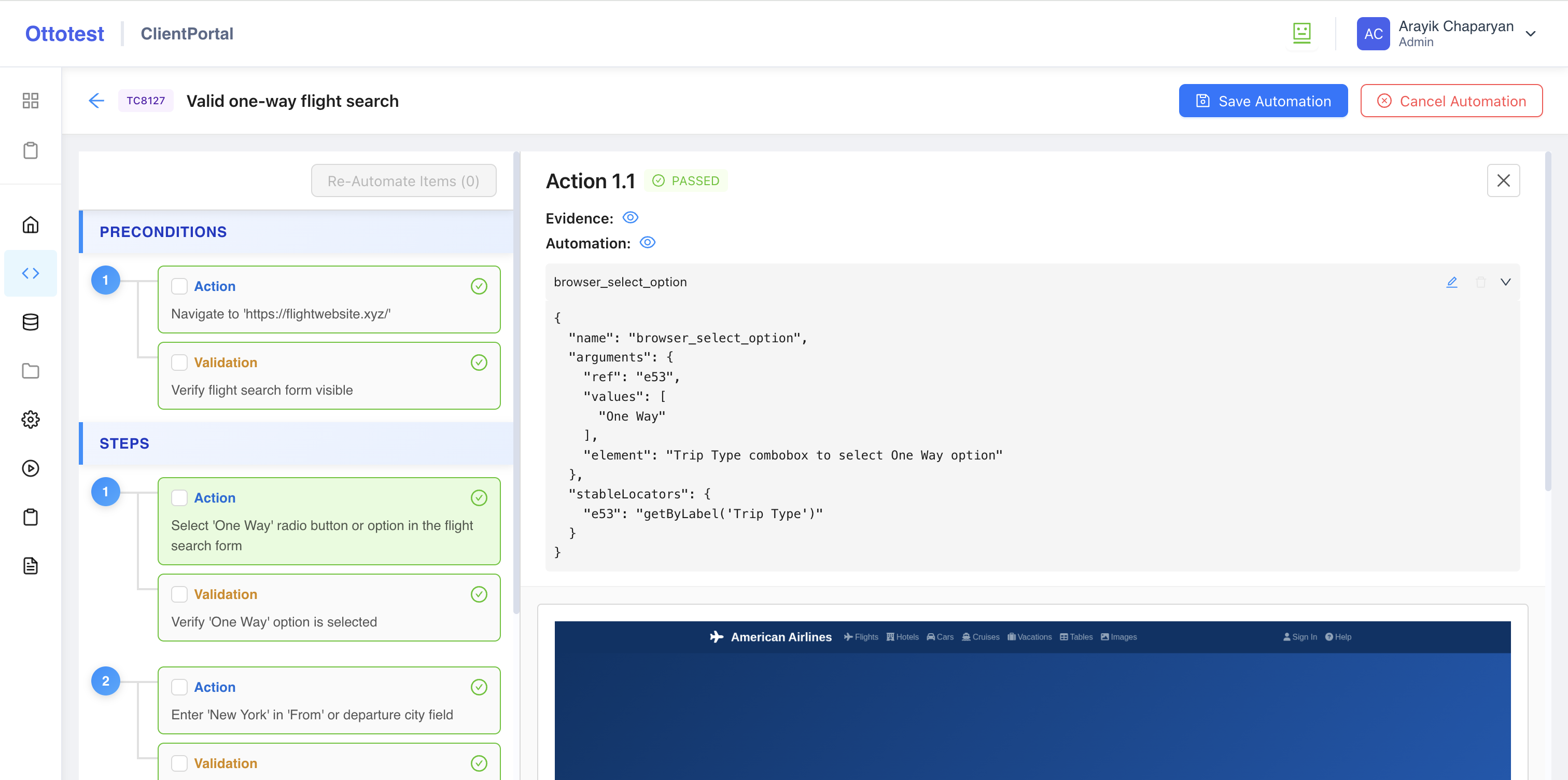
Depending on the test automation configuration, results may contain different levels of detail. However, the following data is always generated for each action or validation:
- JSON-formatted data – the automation result for that specific action or validation
- Evidence – an explanation of why each action or validation received its status during automation
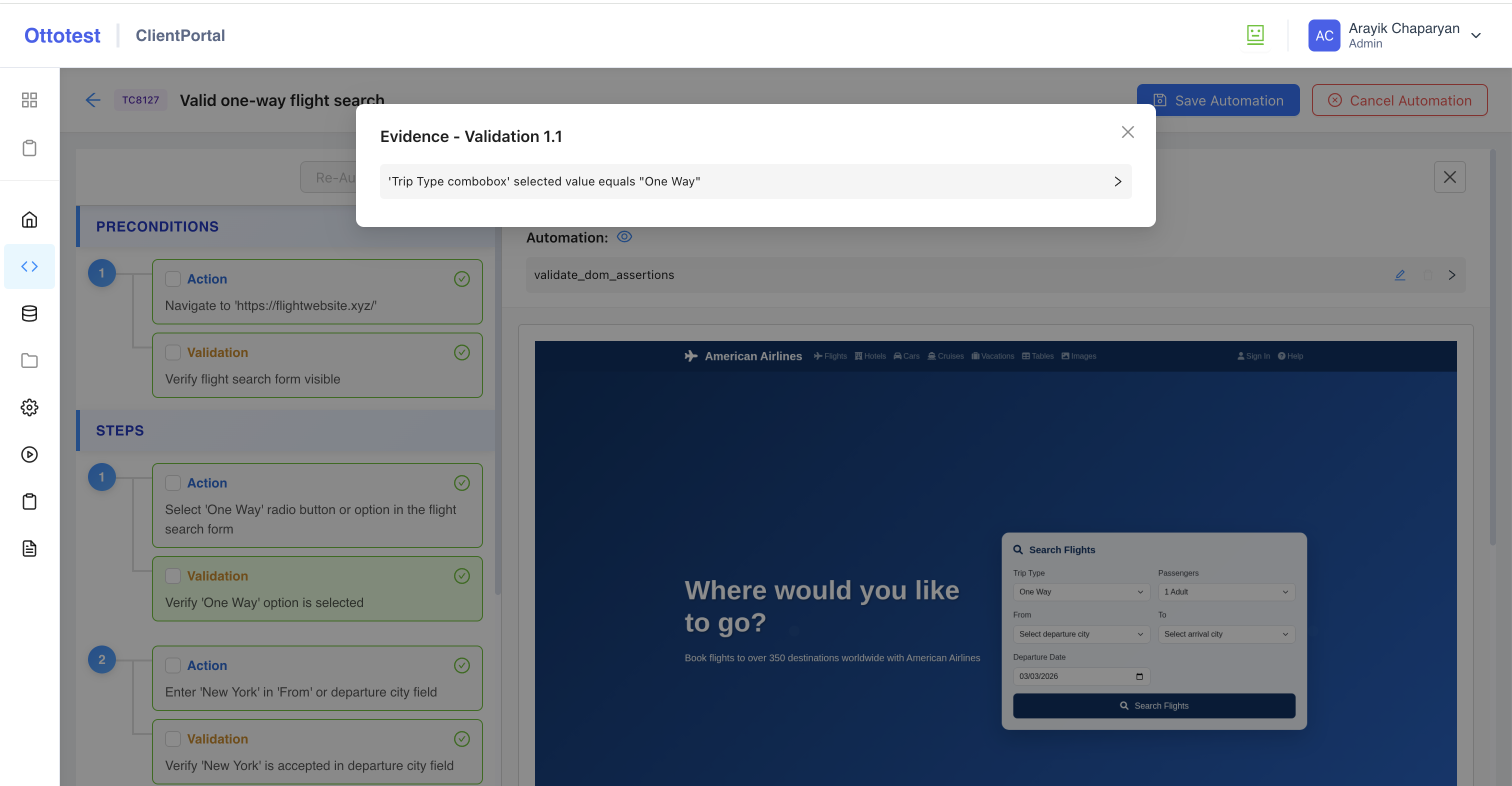
The green border color indicates that an action or validation has an automation result, regardless of whether the execution status is passing or failing.
In addition to these results, depending on the run configuration, you may also receive screenshots and other logs.
Automation result review
Click any action or validation on the left panel to see its generated result. On the right panel you will see automation tool name and cicking the automation tool expands a detailed view.
This view contains JSON-formatted data (which will be enhanced over time) that you should carefully review and confirm. Because the automation is AI-powered, it may occasionally produce incorrect results (for example, due to AI hallucinations or unsupported yet action/validation types).
If you are not satisfied with a result, you can either edit the automation result manually or re-automate the specific action or validation.
You can manually edit/adjust a locator if you are not happy with its quality (for example, if it relies on dynamic text that may change before the next run). In this case, you can manually capture a more stable locator—see how to do this using Playwright’s best practices.
We strongly recommend installing and using the Playwright CRX Chrome extension to validate manually captured locators.