Creating Test Cases Manually
After navigating to the Test Cases view from the left main menu panel, the user lands on the Test Cases page. On the left side of the page, there is a test structure tree that includes sections, sub-sections, and test cases organized hierarchically.
When a section is selected, the user can create a test case in two ways:
- Click the “+ Add Test Case” button located in the top-right corner of the page.
- Click the “+ Create New Test Case” button located at the bottom of the test cases list on the right side of the screen.
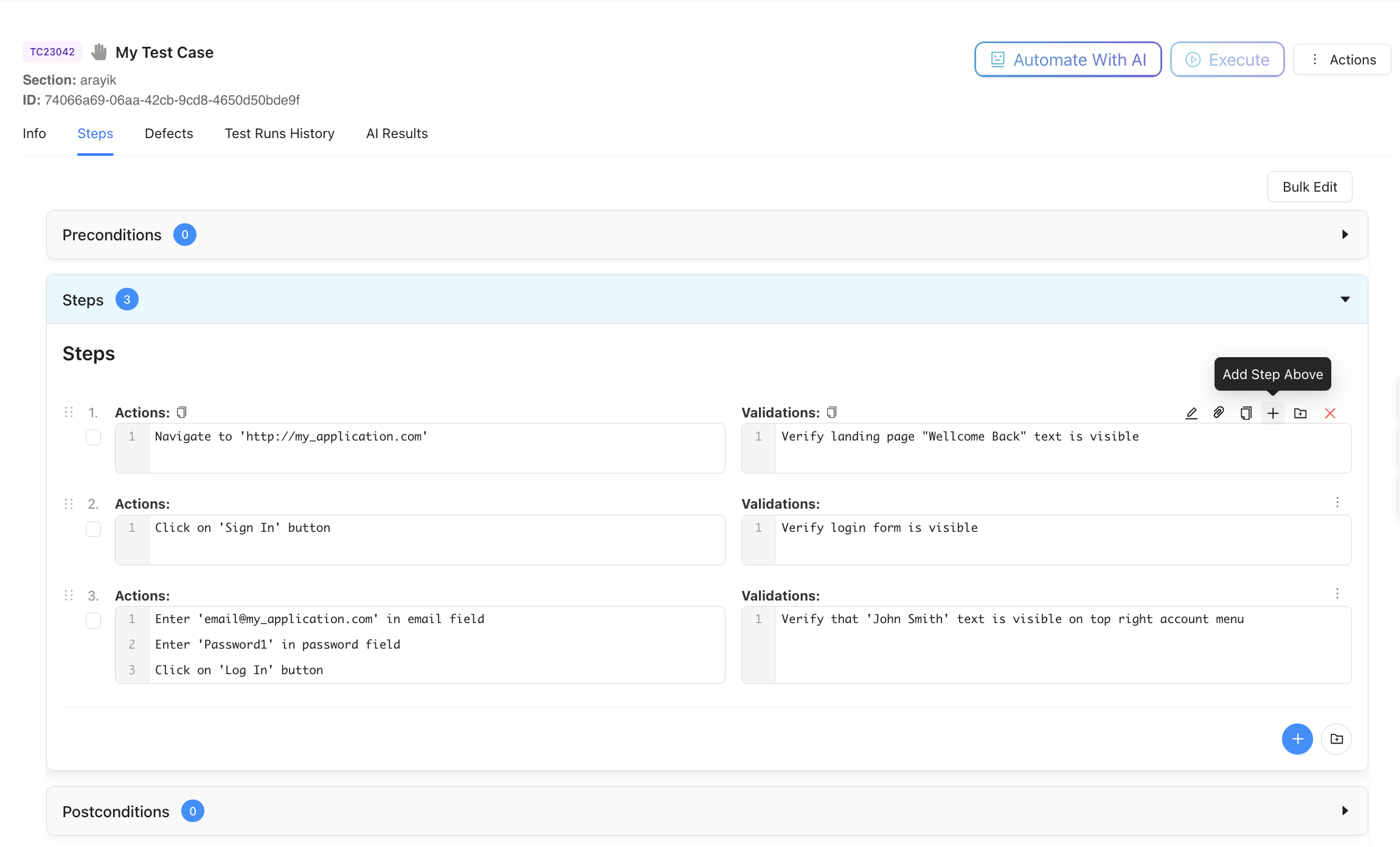
After providing a Test Case titl, the user can begin designing the test steps. The editor provides tools to:
- Add steps
- Create step groups
- Define actions and validations
- Add a step above or below
- Edit existing steps
- Attach files
- Delete steps